
How to Configure MAM Policies with Intune
In the last post, we covered how BYOD (Bring Your Own Device) enrollment in Microsoft Intune allows businesses to separate personal and company data.
But what if you don’t want to manage the entire device at all? That’s where Mobile Application Management (MAM) comes in.
What is Mobile Application Management (MAM)?
MAM allows you to protect company data inside specific apps only—without enrolling or controlling the entire device.
Think of it like this:
- The business controls: Outlook, Teams, OneDrive
- The employee controls: Everything else on their phone
This is commonly implemented using Conditional Access Policies and App Protection Policies in Microsoft Intune.
How Data Stays Separate (The Important Part)
With MAM policies in place:
- Company data stays inside managed apps only
- Copy/paste can be restricted between apps
- Files can be blocked from saving to personal storage
- Data can be wiped without touching personal content
👉 Example:If someone leaves the company, you can remove access to Outlook and wipe company data—without deleting their personal photos or apps.
🔐 Two Phases to Secure Mobile Apps with MAM
To properly implement Mobile Application Management (MAM) in Microsoft Intune, you need two working pieces:
Phase 1: Conditional Access (Enforcement)
Phase 2: App Protection Policies (Data Security)
Step-by-Step: Conditional Access Policy
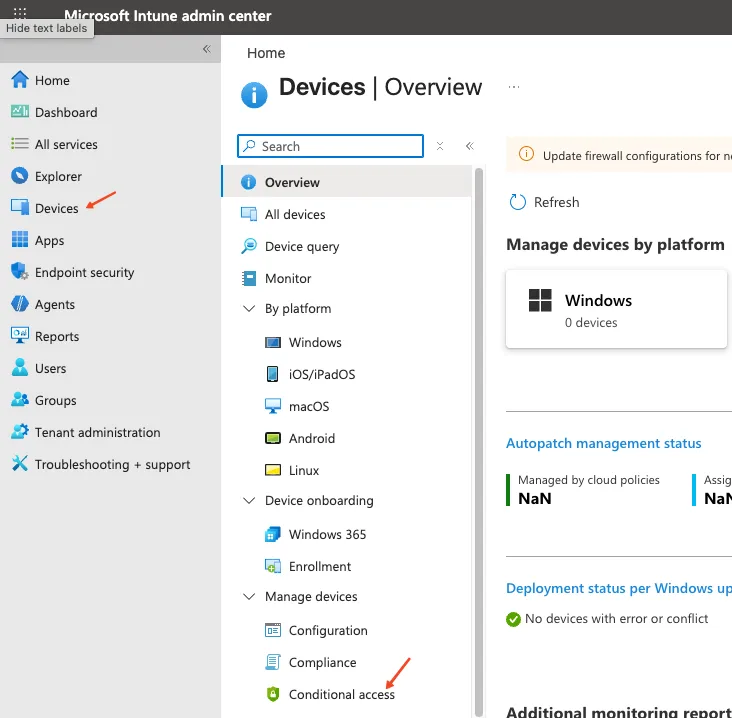
1. Navigate to Conditional Access
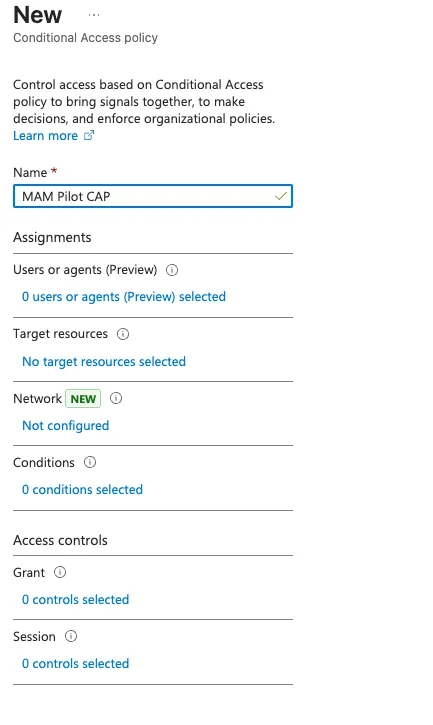
2. Create a New Policy
- Name it something clear like:“Require App Protection for Mobile Access”
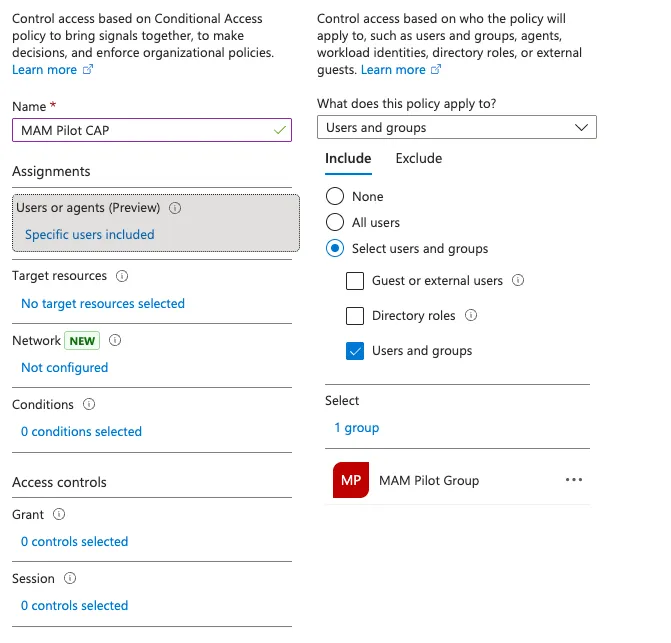
3. Assign Users or Groups
- Start with a pilot group or
- Target all users with mobile access
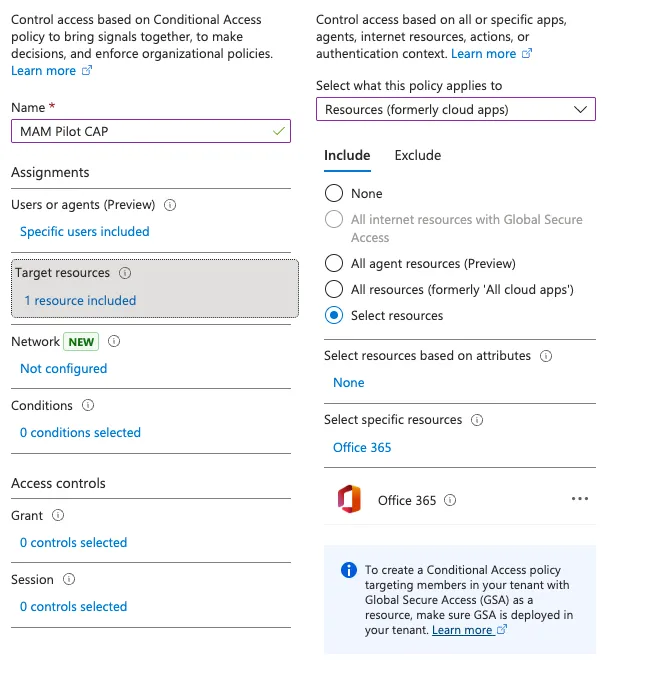
4. Target Cloud Apps
- Office 365 (recommended) or
- Exchange Online + SharePoint Online
5. Configure Conditions (Device Platforms)
Select:
- iOS/iPadOS
- Android
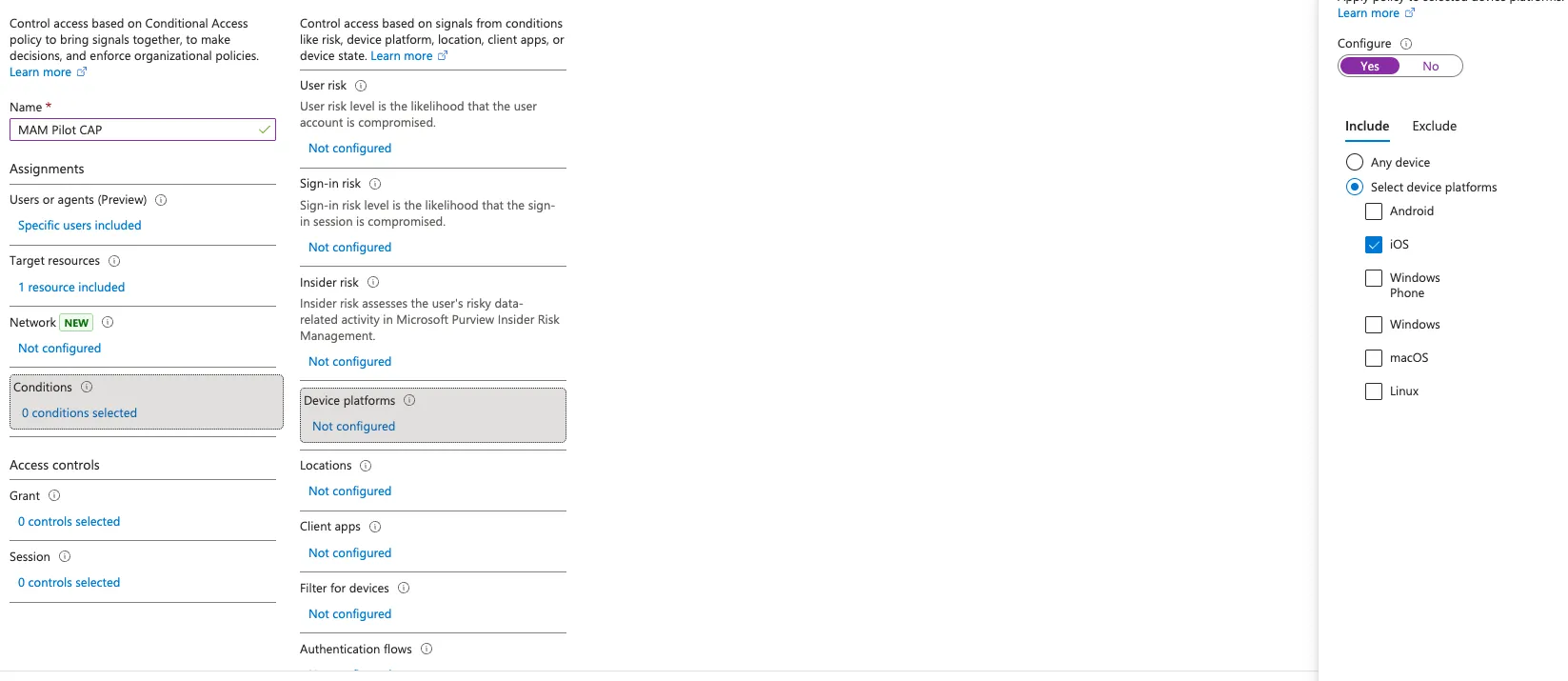
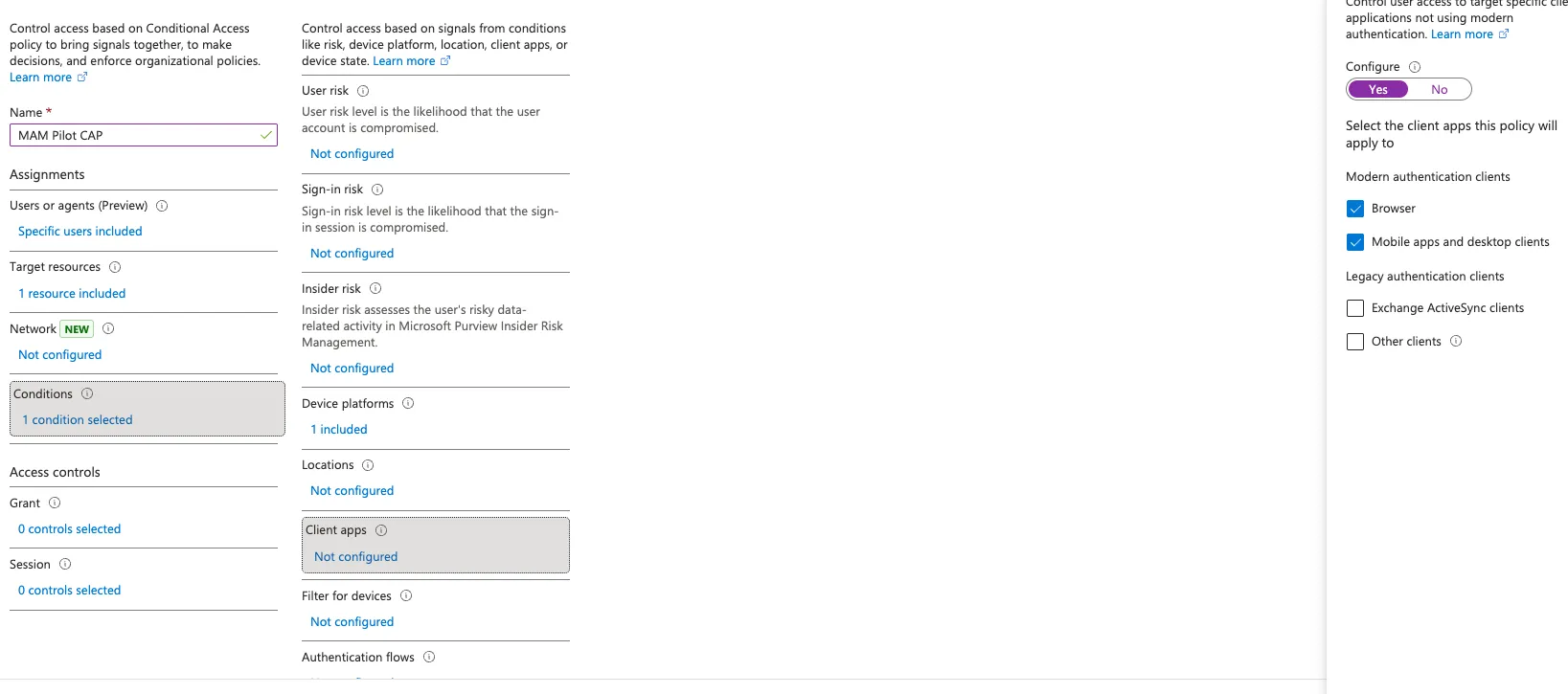
6. Configure Additional Conditions
- Under Conditions, select Client apps and select “Browser, Mobile apps and desktop clients”
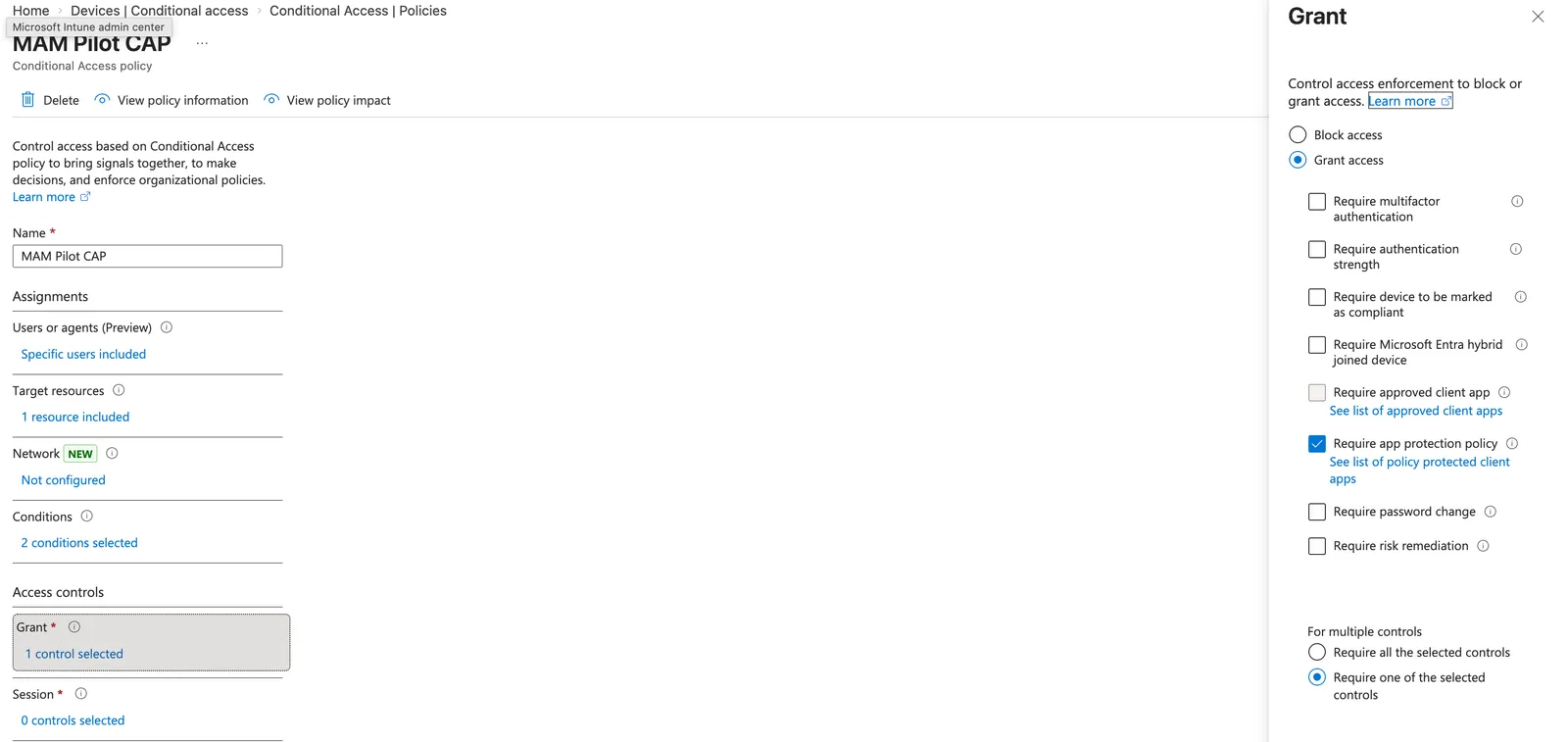
7. Configure Access Controls (Critical Step)
- Under Grant, select: Require app protection policy
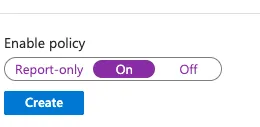
8. Enable the Policy
- Start in Report-only mode
- Then switch to On after testing
Phase 2: App Protection Policies (Data Security)
Now that access is controlled, you define how company data is protected inside apps using App Protection Policies in Microsoft Intune.
Step-by-Step: App Protection Policy
1. Navigate to App Protection Policies
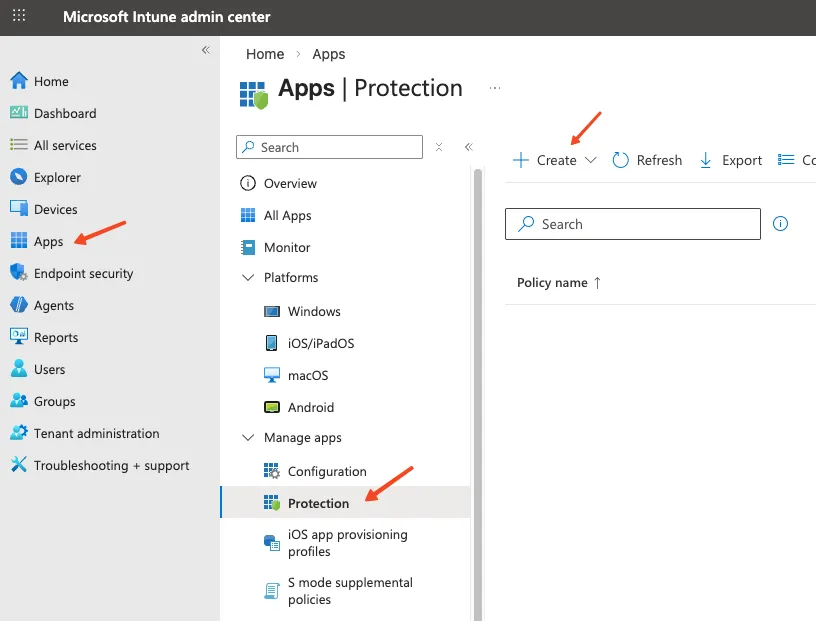
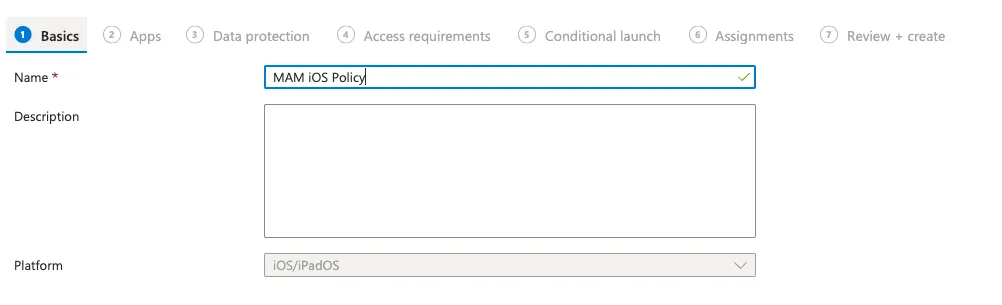
2. Create a New Policy
- Platform: iOS/iPadOS or Android
- Policy type: Managed apps
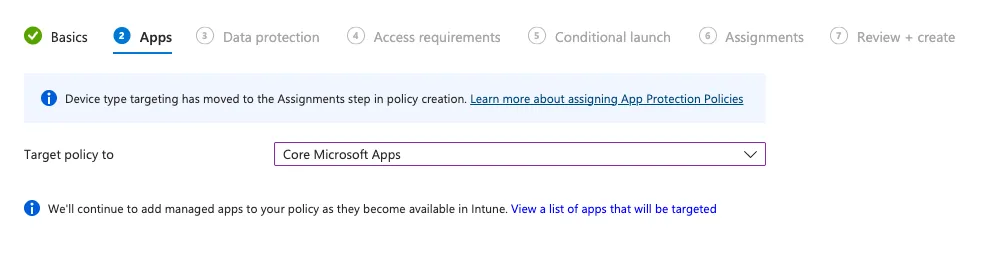
3. Assign Target Apps
Common apps:
- Microsoft Outlook
- Microsoft Teams
- Microsoft OneDrive
- Microsoft 365 apps
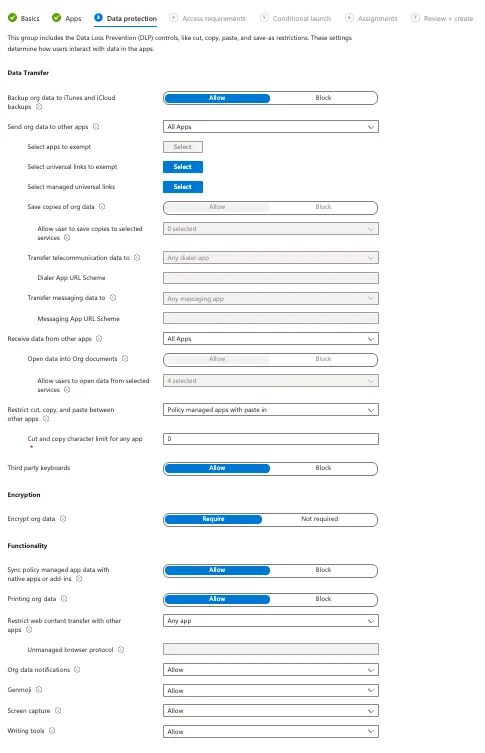
4. Configure Data Protection Settings
Key configurations:
- Block copy/paste to personal apps
- Restrict saving to personal storage
- Encrypt app data
- Prevent “Save As” outside managed locations
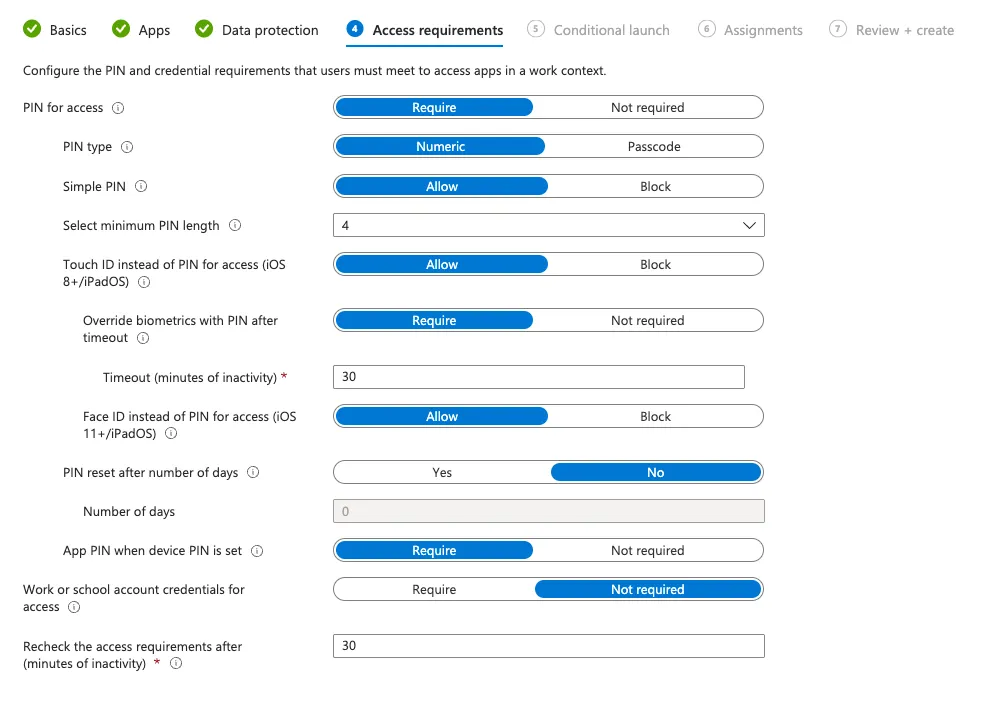
5. Configure Access Requirements
- Require PIN or biometrics
- Require work account
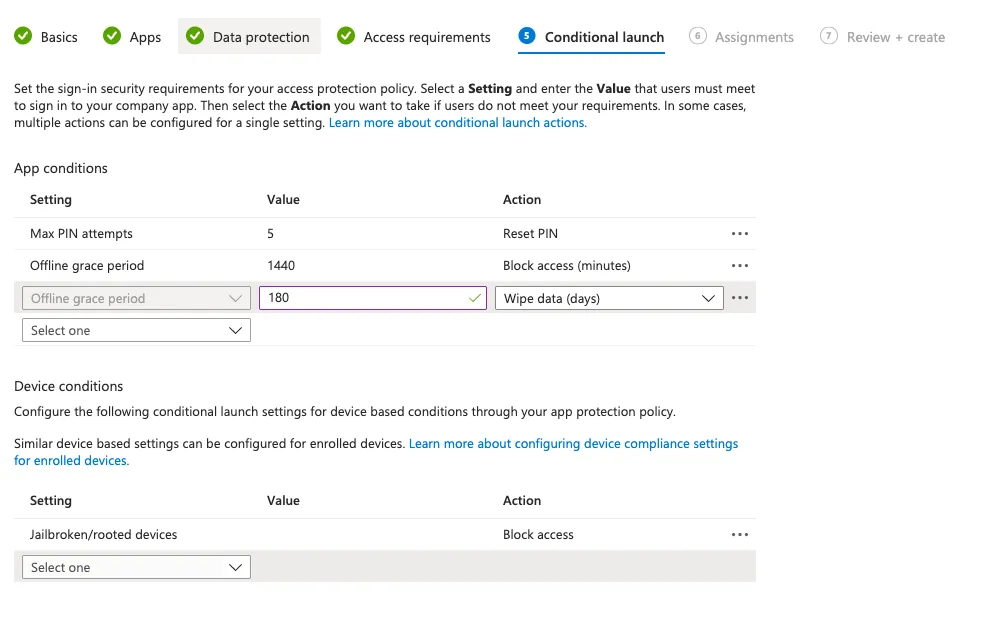
6. Configure Conditional Launch
- Configure app conditions
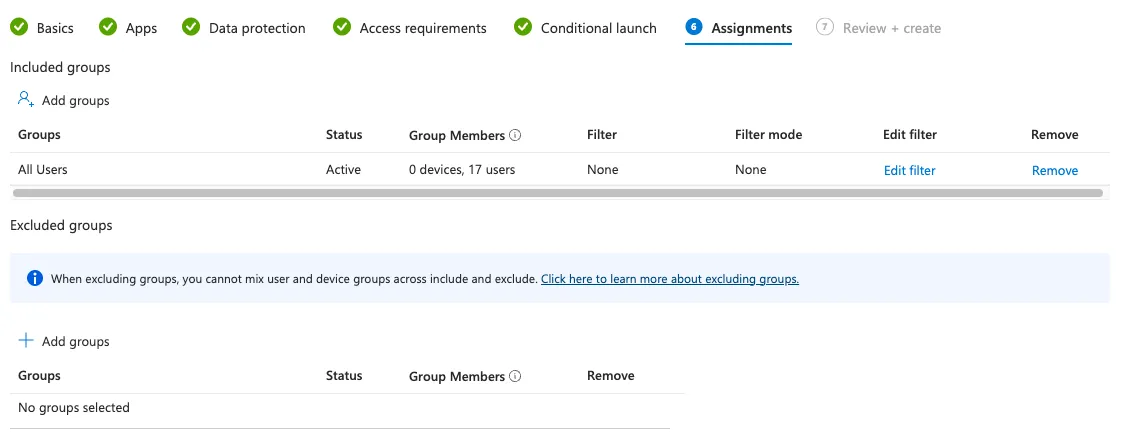
7. Assign the Policy
- Target the same users/groups from Phase 1
Final Thought
Mobile Application Management gives businesses a practical middle ground:
Protect what matters (company data) without overreaching into personal privacy.
If you’re not sure whether MAM or full device management is the right fit for your organization, it’s worth a quick conversation.