Enabling Enterprise App Controls in M365
Most organizations lock down email filtering, MFA, and device security.
But they may be forgetting one critical control: Third-Party app access.
Who is allowed to grant third-party apps access to your Microsoft 365 data?
If users can freely click “Sign in with Microsoft” and approve permissions, they may be granting external applications access to:
- Exchange mailboxes
- SharePoint and OneDrive files
- Teams data
- User profile and directory information
This is why we recommend only allowing Admins to approve third-party enterprise applications.
The Risk: User Consent to Enterprise Apps
When a user signs into a third-party SaaS app using Microsoft, they are often presented with a permissions screen.
Examples:
- “Read your mail”
- “Access your files”
- “Maintain access to data you have given it access to”
- “Read directory data”
If user consent is enabled, they can approve this without IT involvement.
From a technical perspective, this creates:
- Shadow IT integrations
- Persistent OAuth tokens outside your control
- Potential data exfiltration paths
- OAuth phishing attack exposure
Attackers increasingly use consent phishing campaigns where a malicious app requests broad API permissions and the user unknowingly grants access.
Unlike traditional phishing, there is no password theft involved — the user authorizes the access themselves.
Recommended Configuration: Require Admin Consent
In most business environments, standard users should not be allowed to add new third-party or Enterprise Apps.
Instead, configure Microsoft Entra ID to require administrator approval.
Where to Configure This Setting
In the Microsoft Entra Admin Center:
-
Go to Microsoft Entra - https://entra.microsoft.com/
-
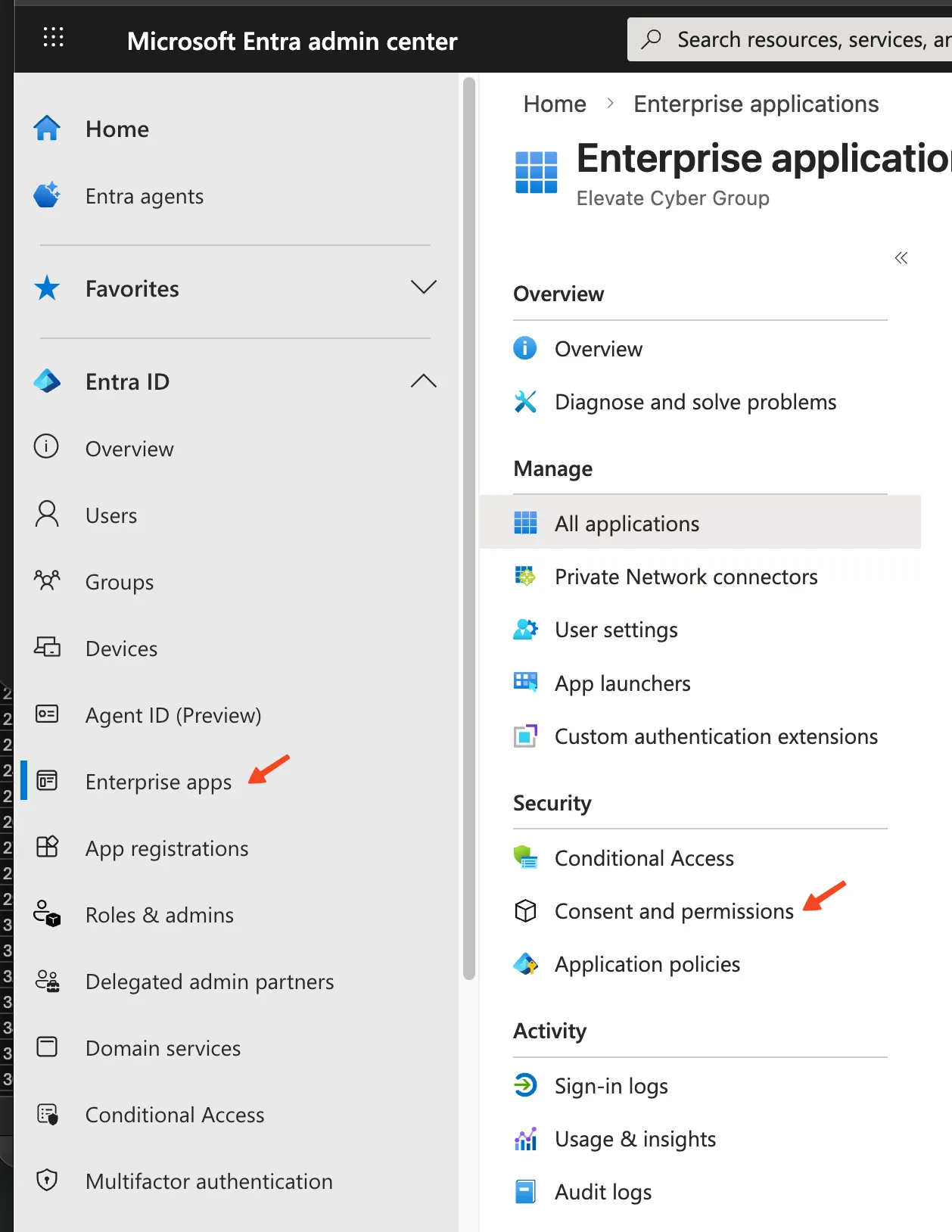
Navigate to Enterprise Apps on the left pane
-
Select Consent and permissions (under the Security area)
-
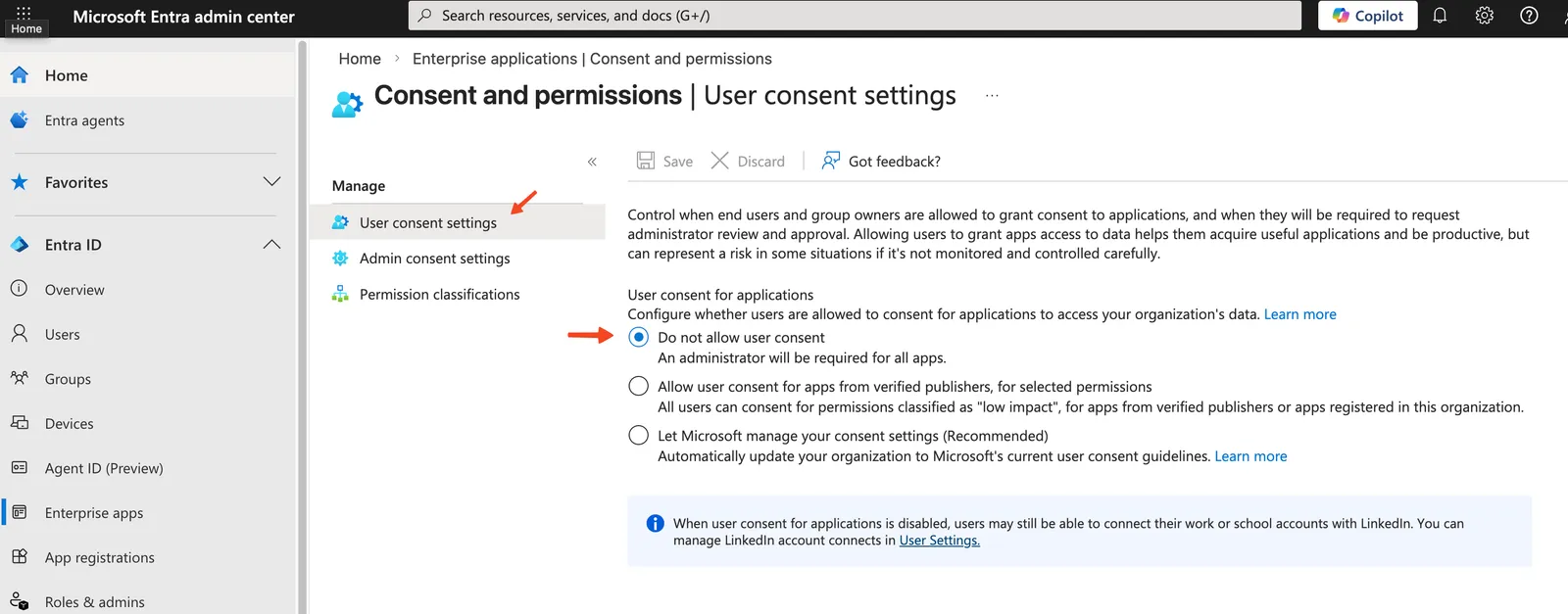
Review User consent settings
-
Select Do not allow user consent.
-
Build out a Admin Consent request workflow in the Admin consent settings.
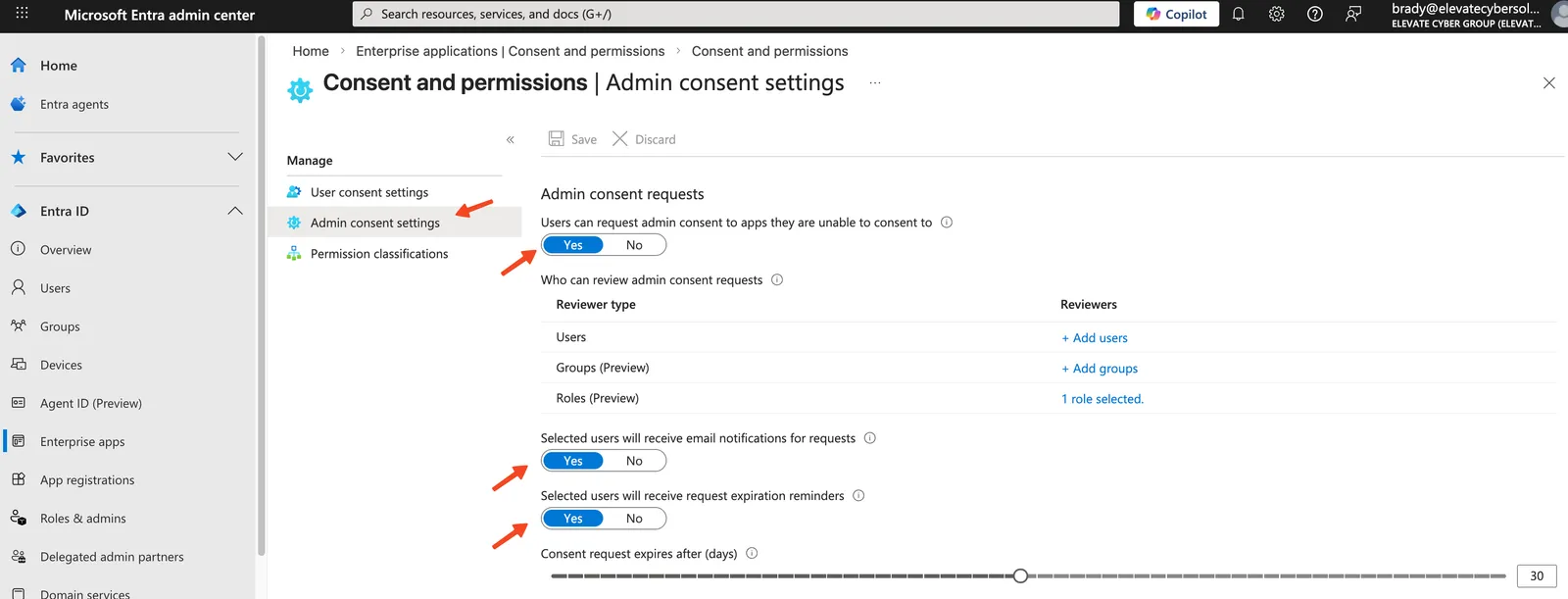
You can also review your existing app:
- Enterprise Apps→ All Applications
- Sort by creation date
- Identify apps added by users
- Review granted API permissions
This audit step often surfaces unknown integrations.
What This Protects Against
Requiring admin approval helps prevent:
- Unauthorized third-party SaaS integrations
- Data leakage through API access
- OAuth-based phishing attacks
- Compliance violations related to data handling
- Cyber insurance exposure from unmanaged integrations
It also forces a governance process:
- Why is this app needed?
- What permissions does it request?
- Is there a safer alternative?
Final Thought
If you have not reviewed your enterprise application consent settings recently, it is worth a quick check.
If you would like help auditing your Microsoft 365 tenant and identifying hidden risks, schedule a conversation here:
Schedule afree consultation